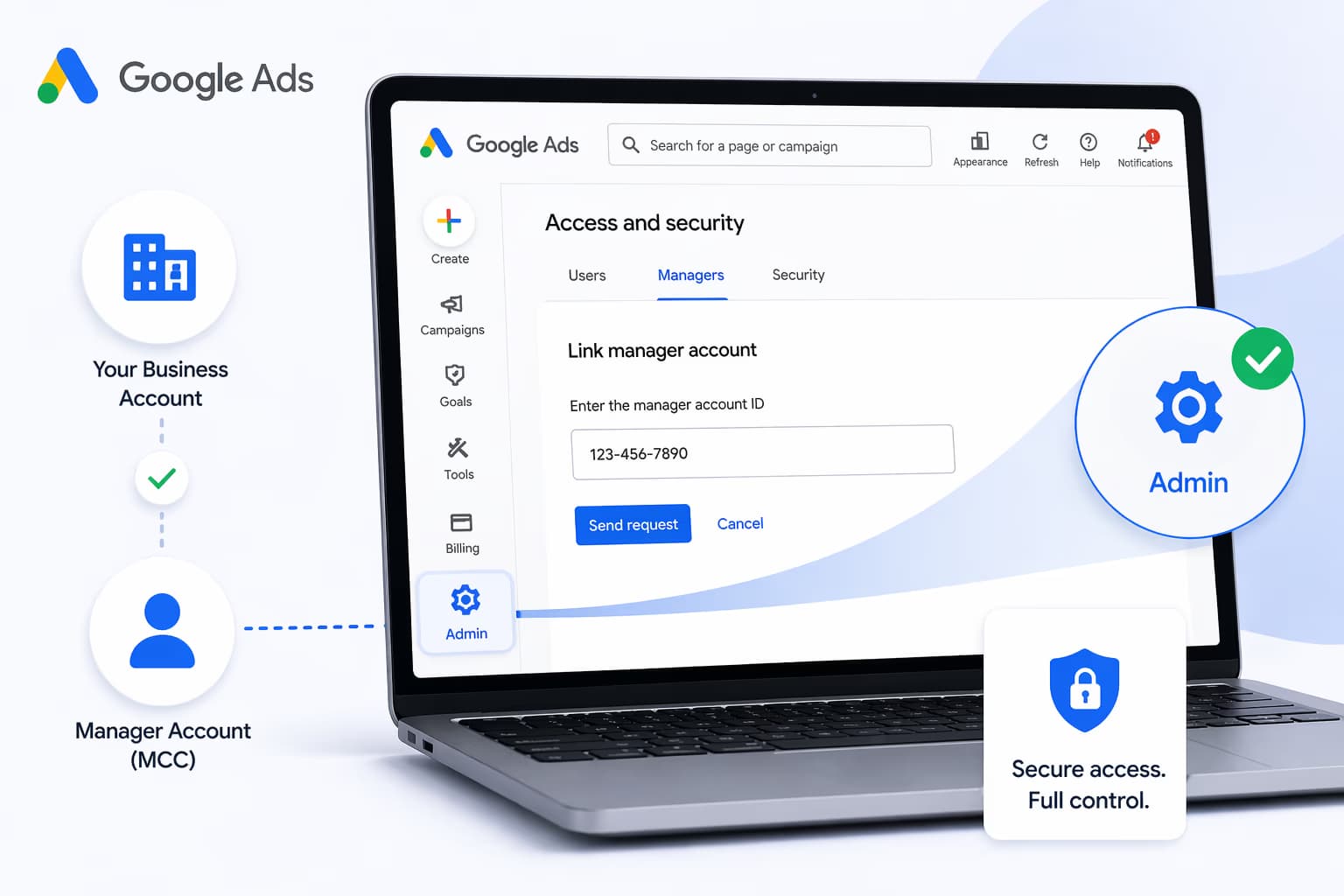
Summary: Learn how to securely grant Google Ads access to a Manager Account (MCC). This guide covers the benefits of using an MCC over sharing login details, provides a step-by-step walkthrough for linking accounts, and outlines best practices for maintaining data security and control.
Managing Google Ads campaigns often involves collaboration between businesses, IT teams, and marketing professionals. One of the most efficient ways to enable this collaboration is by granting access to a Manager Account (MCC – My Client Center). This allows agencies, web development partners, or consultants to manage campaigns and leverage marketing automation without needing direct login credentials.
In this guide, we will walk you through exactly how to grant access safely and correctly.
What is a Manager Account (MCC)?
A Manager Account (MCC) is a master account that allows advertisers or agencies to manage multiple Google Ads accounts from a single dashboard. Instead of juggling multiple logins, the MCC provides centralized control, reporting, and optimization, functioning much like a dedicated SaaS platform for your ad management.
Why Grant Access Instead of Sharing Login Details?
Sharing login credentials is not recommended for security and compliance reasons. By linking accounts properly, you can:
- Maintain full ownership of your account
- Control permission levels for specific users
- Revoke access at any time
- Keep billing and sensitive data secure, aligning with standard IT security protocols
Step-by-Step: Granting Access to a Manager Account
1. Log into Your Google Ads Account
Go to ads.google.com and sign in using your secure account credentials.
2. Open Access Settings
- Click on the Tools & Settings icon (top right corner)
- Under the “Setup” section, select Access and Security
3. Navigate to Managers
- Click on the Managers tab
- This is where you manage account link requests
4. Link the Manager Account
- Click the + (plus) button
- Choose Link manager account
- Enter the Manager Account ID (provided by your agency or consultant)
5. Send the Request
- Click Send request
- The manager will receive a notification and approve the link
Best Practices
- Only grant access to trusted partners and technology vendors
- Use the minimum level of access required for the task
- Regularly review who has access to your account
- Remove inactive users or agencies when no longer needed
Final Thoughts
Granting access via a Manager Account is the safest and most professional way to collaborate on Google Ads campaigns. It ensures transparency, security, and flexibility for both businesses and marketing teams.
If you need help setting up your account, integrating it with your web development projects, or managing campaigns, working with an experienced professional can make a significant difference in performance and ROI.